Showing posts with label Google. Show all posts

Sunday, October 25, 2015

Friday Letters-Student Self Reflections

Today's #sunchat on Twitter inspired me to do a blog post explaining my Friday Letters, my students' weekly reflections.


A couple summers ago, post TMC, I remember seeing people tweeting about the idea of Friday Letters.  I think the teacher had her students write her a letter every Friday about different topics.  That is about all I remember, but I have wanted to do that with my students ever since.

Fast forward a year or two and last Spring when I piloted using Google Classroom with my Honors Math 7 class, I had them do Friday Letters for just the last few weeks of schools.  I wanted to try it out on a small scale (and do the Friday Letters digitally on a running google doc) to see how to manage the workflow.

This year I knew I wanted to start the Friday Letters right away and establish it in a meaningful way for student self reflection.  I had not yet chosen my PPG (Professional Practice Goal) at the beginning of the school year when I started Friday Letters, but was very happy to realize they would end up being a key component of my PPG. In WI part of Educator Effectiveness (how we are evaluated as teachers) involved writing a PPG.

I've copied and pasted a portion of my PPG below so you can see how the Friday Letters are used to assess student understanding of math concepts, as well as, to uncover misconceptions.

Identify related Danielson Framework for Teaching domain/component(s):
Educator:       3d Using Assessment in Instruction
Focusing on:  Taking the pulse of the class by monitoring student understanding and using strategies to elicit that information.

Evaluator comments:       

Describe applicable instructional or non-instructional activities:
Educator:       
Using formative data to drive my classroom instruction:
  • Daily warm ups
  • Check ins during collaborative group work time
  • Students self correct homework via google classroom
  • Homework assignment questions/discussions posed by students
  • Exit slips
  • Formative assessments
  • Friday Letters- student self reflection on learning

I will provide individual feedback to students through their Friday letters and pull small groups based on any misconceptions I discover.  Students will use Google Classroom to correct their own assignments.  This allows them to assess their own work. I check in with students every day to make sure assignment are completed and that I answer any question for clarification.  Students may be pulled in small groups or individually based on this formative feedback.  Students are required to fill out a google form if they plan to reassess any standard,  This form requires students to reflect on their study habits and areas of difficulty.  They also decide on when they will reassess and what they need for me before reassessing.

Students write their Friday Letter reflections every Friday.  I usually provide a prompt and they respond to the given prompt in the format of a letter to me.  When I want to comment back to a student I highlight the date of the letter and then comment from there.  This is an easy way to comment back to the entire letter instead of highlighting bits and pieces and responding that way.  I have about 120 students and the commenting back to them is the hardest thing to manage.  I spent over 2 hours commenting back to every student in just one of my four classes.  Students know that I do not comment back every week.  They do love to ask me questions and sometimes my comment will spark a side conversation with them.

As I read through their letters I jot down notes of things I need to clarify or really focus on due to misconceptions that I see.  This may be something I address with all my students, just one class, or I may pull small groups, or even conference with a student individually.  It depends on what I'm seeing in the Friday letters that week.  I'm also really trying to give them ownership of their learning and assessment, by having them self assess understanding and reflect on their own learning.

I've talked about the whys of the Friday Letters, now onto the hows.  I set up a google doc Friday Letter template that I shared with students in Google Classroom.  Each student made a copy of the Friday Letter template and then bookmarked it in their math folder.  That way every week they just go to their math folder and click on the link to their Friday letter.


 This shows you what a student's Friday letter document looks like.  That formatting box at the top always stays.  Every Friday students write the new letter at the top of the doc, right under the Friday letter formatting box.  Students sign their names to each Friday letter, even though you don't see that here.

When I want to comment on a Friday letter I highlight the date of the letter (or the most recent dated letter if I want to give comments about more than one letter).  I type in my comments and they show up to the student as you see below.  Very important...tell students to NOT RESOLVE the comments you make, otherwise you will get an email that the comment was resolved.  I've told my students that if they want to respond to my comment, just add it to their next Friday letter.  The comments stay next to the letter so it won't clutter things up.


Most of the prompts I give students are designed for them to reflect on their learning that week and so I can see where they are at in their understanding of the math concepts. I'm also trying to get them to be more self reflective so they can see the impact of their own actions on their learning.

Some topics we've covered:

  • Introduce yourself to me
  • Tell me what you understand about ratios, rates, and proportions
  • What is the difference between discrete and continuous data?
  • Tell me everything you know about direct variation
  • Give me feedback and suggestions on math workshop: opener, mini lesson, group work time, sharing and reflection, small group lessons/individual conferences
  • How does homework help you learn?
  • How do you prepare for assessments so you are able to demonstrate your understanding of the math content and skills?
I'm really enjoying reading students Friday letters.  Not only am I getting a very clear picture on where students are regarding the math content, but I am finding out what their likes and dislikes are and how they spend their time out of school.  I feel like I am getting to know students much better on a personal level thanks to the Friday Letters.


Tuesday, June 30, 2015

Google Classroom-Part II (Using stream for announcements and assignments)

You can check out my previous post on Google classroom Google Classroom-Part I

In case you missed my other post, this is what my home page on Google Classroom looks like.  I only used it with my Honors Math 7 class at the end of the year to test it out and see how it worked.  I loved it (as did my students) and I will be starting off this coming school year using it with all four of my math classes.


These are my four math classes.
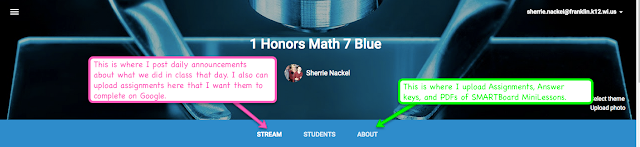
My main purpose for using classroom was to store documents students needed access to like assignments, answer keys, and PDFs of the mini lessons I teach on the SMARTBoard as part of my math workshop.  I wanted students who were absent to be able to stay caught up if they chose to and I have to say they have impressed me with their responsibility.  My previous blog post linked above explained in detail how I used the About page with my students.


This is what the top of my home page looks like
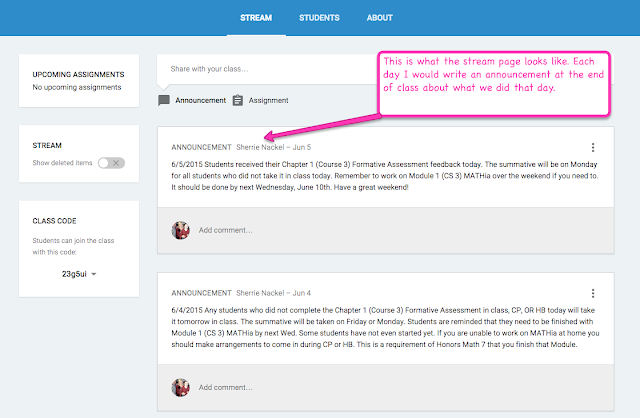
This post will focus on how I used stream with my class.  Stream is where you can post announcements or share assignments with students.  I did not share assignments this way often because I don't really do the grading on Google (although I can and maybe will down the road).  I do, however, have two examples of house I shared assignments with my students.

Each day I put out a daily announcement to my students after class was over.  That way if a student was absent or missed part of class for a music lesson, or just plain was not paying attention and didn't  remember what we did or if there was an assignment, s/he could check without having to ask me or another student.  The majority of my Honors Math 7 students were highly motivated and would check classroom if they were absent, look at the mini lesson, and print out and do the homework assignment.  It was so nice for them to come back to class and be right on track with the lesson and homework even if they missed class.


This is what my stream looks like

I really liked doing "Friday Letters" as a running google doc.  Even though we only tried it out for a few weeks, I think I will stick with this method next year.  I also plan on commenting back to students on their letters. I think this will definitely help me develop a great rapport and connect with each individual student of mine.  Because this was a running document it was important that students did not submit it as finished.  If they forget and submit it, it's very easy for them to back in and change it back to not done.  I really think Friday Letters deserves it's own blog post, but maybe that will wait until next fall until I have done it for a longer period of time.

Friday Letter assignment on classroom

This is an actual letter one of my students wrote to me.  Each week they put their new letter at the tope of the document.

Friday Letter student sample

This was an assignment where the students did their "Critical Concepts" (which is key vocabulary) as a google doc.  They each got a copy via classroom and then submitted the assignment when finished.  It's really nice because if it shows any students "not done" you can click on and find which students are not finished.  It's very easy to keep track of who still needs to finish.


Critical Concept assignment on classroom

This is a an example of what one student did for Critical Concepts.

Critical Concepts student sample

Sunday, May 24, 2015

Google Classroom- Part I

I know I have not blogged in forever.  I think I've even missed a month or two of Currently.  So many great things have been happening in my classroom this year.  I LOVE my students and get sad thinking we only have 3 more weeks together (not that I'm not looking forward to a relaxing summer).  I have three boys of my own and the oldest one is a sophomore and made the Varsity LAX team and the younger two both play LAX and BB.  Needless to say every free moment for the past few months has involved cheering one of them on in their sports endeavors.  It has been so much fun and one of my favorite parts of being a mom, but there has been no time for blogging.  I have myriad ideas for blog posts and hopefully this summer my creative juices will flow again on this blog when I get a chance to breathe.

I decided a couple months ago to try out Google Classroom with my Honors Math 7 class for 4th quarter.  I wanted to just test out a few things on a small scale to get the hang of it myself before committing to doing it with my other three classes of Math 7. I'm no expert on classroom, but with the help of my awesome tech coach I figured out how to use it to for the benefit of my students and things have been going really well with it.  It was easy to set up.  I mean really easy.  It does take some work to keep up with all the document uploading and the more you have on Google the easier it will be for you.

My purpose in trying it out small scale was to understand the best way to organize my documents when using them in classroom and how to store them on Google Drive when the chapter was finished.  I wanted to see the workload it would add to my already very jam packed schedule of things I need to do on a daily basis.  I wanted to have the freedom to try things out on a small scale (one class) and get feedback from my students on what they like about/need from Google Classroom.  I kept reminding my students that Classroom is for their benefit first and foremost.  This blog post is an overview of classroom and focuses mainly on what I store on the About page.

Step one of course is I set up my Google Classroom.  I actually already did that last year and never really used it so that step was done.  Once you create a class you are given a "Class Code".  I simply gave this to my students and they typed in the code for my class.  They knew what to do because other content teachers have been using Google Classroom all year.

All four classes are set up and ready to go, but I'm only it with Honors Math 7 this quarter.
My main purpose for using classroom is to store documents students may need access to like assignments, answer keys, and PDFs of the mini lessons I teach on the SMARTBoard as part of my math workshop.  I wanted students who were absent to be able to stay caught up if they chose to and I have to say they have impressed me with their responsibility.


Stream is where you can post announcements or share assignments with students.  I do not share most assignments this way because I don't really do the grading on Google (although I can and maybe will down the road).  I have been putting out a daily announcement to my students each day after class is over.  That way if a student is absent or missed part of class for a music lesson, or just plain was not paying attention and does not remember what we did or if there was an assignment, s/he can check without having to ask me or another student.  The majority of my Honors Math 7 students are highly motivated and will check classroom if they are absent, look at the mini lesson, and print out and do the homework assignment.

These are the three folders I have shared on my About Page:  MiniLessons, Assignments, and Answer Keys.  I keep everything in the folders until the chapter summative assessment.  At that time I move the documents into storage folders in my Google Drive (that could be another post).

I've given the example of what my students would do to see the mini lesson for 9.1 if they missed that.

Students click whichever folder they need.

They click the document they need.

This is just the first page of the Mini Lesson as it was broken into more than one part with work time mixed in.
My students correct their own homework at the beginning of class everyday.  They look over the answer key in Google Classroom using their Chromebooks (we are 1:1).  They love being able to access the assignment answer keys instead of waiting for the key to be passed around the room like we did in the past.  I answer any questions on homework after they check it.  This all occurs while they are completing their daily warm-up.

I upload the assignments in classroom so students have access.  This puts to responsibility back on the student if they misplace or forget their assignment at school and want to complete it on time.

It has been very time consuming to make PDFs of the Mini Lesson portion of workshop that I share with students via my SMARTBoard.  I think it's so worth it though, sometimes students need to look at the worked examples one more time.  It's great if a student misses the mini lesson or just want to look it over again, they still have access to the mini lesson.

Those are the three main things I have been uploading for my students on my About Page.  I have also uploaded a couple assignments via the Stream, see the post linked below for more information.  Feel free to ask any questions here or on Twitter @luvbcd

Google Classroom Part II- Using Stream for Announcements and Assignments

Tuesday, April 15, 2014

Small Group Google Form Request and Spreadsheet


I'm linking up this post up at Head Over Heels for Teaching and her Spark Student Motivation Saturdays, because I got very positive feedback from my students when I let students request small group intervention via a Google Form


I'm home today with a sick boy and am finally blogging about something I did in my class last week that far exceeded my expectations.  I didn't take any photos while doing this and I'm home today so perhaps I will update this post later with more photos, but everything is at school and I'm home today.  The main focus of this post is the Google Form and Spreadsheet I used.  I had a last minute idea, the stars aligned, and when I called my tech coach he had a few minutes available to help turn my idea become reality.

I spend lots of time pulling small groups for mini-lessons or conferring about formative feedback I get via entrance/exit slips.  Last week we had a MATHia day prior to our Chapter 10 Assessment on Triangles.  Students had the option to work on the computer or request extra practice/small group instruction on various concepts being assessed the next day.

With the assistance of the best teach coach ever @chadkafka I created the google form shown below where students could sign up for some extra practice/discussion any concepts they felt they still hadn't mastered.  I created a google shortcut for students to access the google form.  This form seriously took me about 10 minutes to create. If I can do it anyone can.  Really, the creation is a fairly intuitive process. Interested students completed the form and I had instant data on who I would be working with during math class/ Core Plus that day.


If you click to picture below you can see the results of my form.  It was so easy to see everything in one place in Google Drive.  I hid the student name column so I could post this for you to view.  That would be located directly left of the class hour.  I ended up using the purple shading because I had students in 6th hour that were separated and I was not able to sort them by class hour because the sorting feature was being problematic the day I was using this.

Google Form results allowed me to form small groups.
I do like the idea of shading the box (dark purple) once the student has completed a learning station/small group lesson on a concept so I can keep track of who has completed what. There was a lot of different things going on at once based on student request.  I also keep notes in the last column if students worked on this during Core Plus or Class.  I love having this data to refer back to and also to inform parents if students are taking advantage of these added opportunities or not.

This worked so well for me.  I did a post about the three Learning Stations I created last year.  I had students use these to practice independently after I modeled for them how the station worked.  I wrote the answers on a post-it on the back to the center and gave the student the sheet protector with the card in it.  Students really enjoyed using these to review for the assessment.  They checked in with me after completing the station and most were able to solve for a missing angle x using the concepts of either the triangle sum theorem or exterior angle theorem.  I'm posting the photos below because they are saved on my computer from when I created the stations last year.

Each color is a different station

Direction sheet.

Each station had six cards.  I also attached the answer key on the back of the white sheet. The cards were actually on the other side of the sheet protector when I handed them out. 

I also made worksheet that had two different triangle constructions for students to practice.  The constructions have been really challenging for many of my students.  While many have mastered how to construct a triangle using given sides or angles, many still struggle.  If students just wanted more practice they worked on this independently, but many preferred to have me model the construction for them in a small group.  During mini lesson time in workshop I use the SMARTboard compass to construct triangles.  Some students prefer watching me use a real compass to do the construction step by step while they complete their own construction.

The last three concepts, determining congruence in triangle, determining possible side lengths for the third side of a triangle when two are given, and whether three side lengths would form a triangle, were all done in small groups with me using whiteboard examples and lots of discourse.

What I loved about using the Google Form for students to request small group lessons was the ownership it put on the students.  This gave every student access to work on concepts they still felt they needed more work on.  I pull small groups all the time, but usually I use entrance/exit slip data to determine the groups.  This gave students choice and voice in what they still needed/wanted to practice prior to the assessment.

I will definitely be using Google Forms more frequently to get feedback from students.  I would also like to create some entrance/exit slips on a form.  I will be sure to share on the blog anything else I do.  Let me know if you have any questions and I definitely recommend you try making a Google Form yourself.  It's so easy having the data collected on a Google Spreadsheet could not be easier to view!